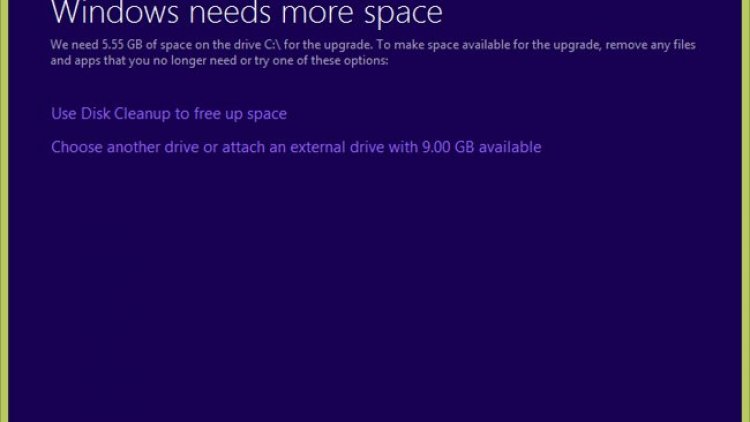
If you are planning to move to Windows 10, installing the Windows 10 operating system is actually the first event you may encounter the problem, so installing the new Windows 10 operating system requires a certain amount of free space on the C drive or other so that you can download it and install it on your computer, and the system can run certain elements successfully.
For Windows 10, the required space is 16 GB, which must be available on your device before starting the Windows 10 download or upgrade process.
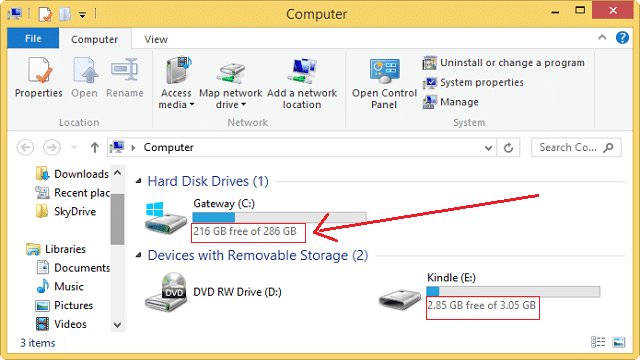
To check how much space you have left, go to My Computer (or My Computer depending on which version of Windows you’re running) where all of your drives will be listed.
You can see the remaining space indicated below each drive, or you can right-click and select Properties to get a clearer overview of each space (the system drive is usually C:).
To save more space on your computer, you should follow these steps
1- Remove temporary program files
Remove all these unnecessary files on your device from their roots, empty those spaces on your device, and remove unimportant files that your Windows may not access. Therefore, we advise you to use the temporary files program used by programs. CCleaner To delete temporary files on your device that will speed up your device and increase space on it.
2- Disk Cleanup
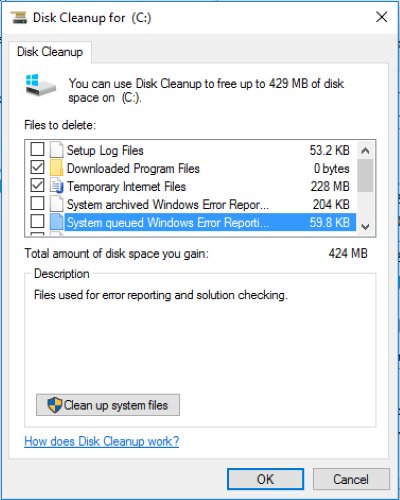
There is a tool that many people may not know about within the Windows system, which works to clean the hard disk and remove temporary files from the Windows system that you do not need as a user or as a system and that occupy space on the hard disk. You can access this tool by following the following steps.
- Go to the drive that you want to clean, for example, disk C or disk D, as available on your device, then right-click on it, then choose Properties (or from the search in the Start menu, type Disk Cleanup, then Search), then a window for the partition properties will appear, from which choose Disk Cleanup.
- After that, you will choose the types of files that you intend to remove, whether they are temporary files, files in the trash, or other unimportant files. In addition, you can choose Clean Up System Files located at the bottom if you intend to remove more system files for Windows.
- Choose the More Option tab, then click Clean Up below system restore and shadow copies to delete the system restore files.