There are many users who are trying to leave Facebook, especially after Facebook was accused of selling its users’ data to Cambridge Analytica, and this promises to be a scandal for Facebook, so if you decide to go ahead and leave Facebook, we will explain to you how to delete Facebook permanently or temporarily.
Why do users delete their Facebook accounts?
Cambridge Analytica is a company that combines consumer data and behavioral science to allow highly targeted marketing, and is accused of having, over the past two years, exploited user data, data associated with 50 million Facebook profiles, without their owners’ knowledge.
Many are asking how it is possible to obtain this data. Yes, it is possible using a personality test application created by Global Science Research that spread on the social network. This data was then sold to Cambridge Analytica by Facebook, which used it to build software that could predict and influence their voting choices through highly targeted ads. It has been claimed that it was a factor in the success of Donald Trump.
It is no wonder that people are upset that Facebook allowed their data to be manipulated in this way without their knowledge, and they are unhappy with the way it handled the scandal. Instead of apologizing, Facebook claimed that it was not this type of data sale or a data breach and that it did nothing wrong.
How to delete Facebook permanently
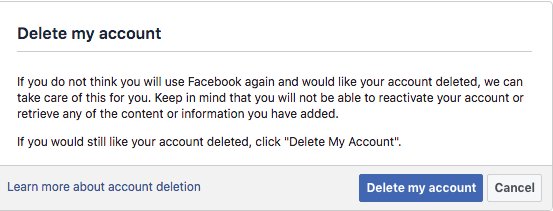
- Know that permanent deletion of your Facebook account cannot be undone
- If you are 100% sure of deletion, go to the account deletion page in your web browser From here
- Click “Delete my account”
How to temporarily disable Facebook
A better alternative for those who are not completely sure that they will never want to return to Facebook is to disable their account. This way they will not lose any of the data, such as friends, photos, etc.
- Log in to Facebook in your browser
- Click the down arrow at the top right of the page and choose Settings
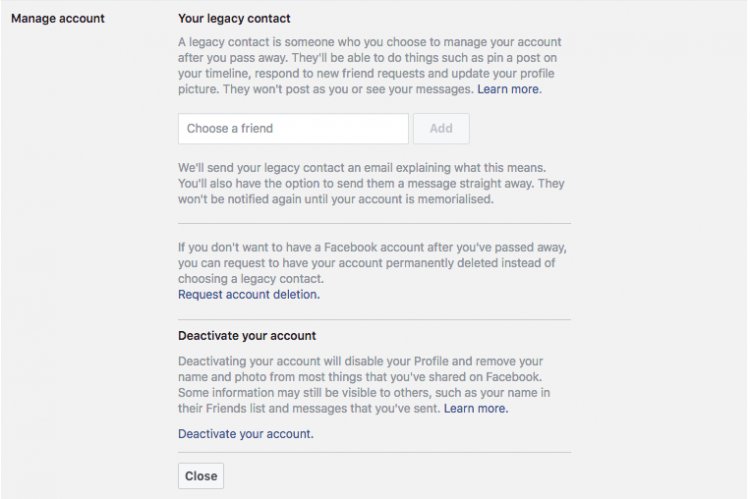
- Click “Edit” next to “Manage Account”
- Click “Deactivate your account” at the bottom of the page
- Enter your Facebook password
- Select a reason for leaving, select the “Disable Email” button, then click “Deactivate”
- You can re-enable your account at any time by logging in to Facebook
Before you go: How to download all your data from Facebook
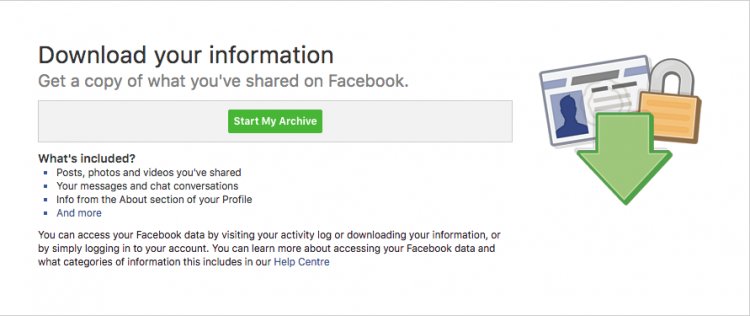
If you want to keep information and data from your Facebook account before you delete it, you can download everything as an archive on your computer. Facebook can download posts, photos and videos you’ve shared, your messages and chat conversations, and information from the About section of your profile.
- Log in to Facebook in your browser
- Click the down arrow at the top right of the page and choose Settings
- On the main General Account Settings page, click the link under “Download a copy of your Facebook data”
- Click “Start Archive”.