Like all social media, Twitter can be one of the social media that you want to delete so we will show you how you can deactivate your own Twitter account.
Can I temporarily disable Twitter?
Yes, it is the same process used to permanently delete the account, but if you want to reactivate the account you will need to do the reactivation within 30 days.
To deactivate your Twitter account, you must first log in to Twitter, you can do this from your phone or computer, then click on your profile picture, which appears in the top bar, and from there choose Settings and Privacy, at the bottom of the account settings, there is a link to deactivate your account. Click on it to show you the following image.
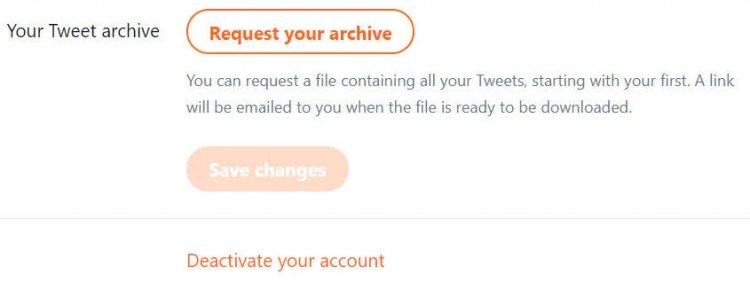
If you want to delete the account from the phone, click “Account” and then scroll to the bottom to find the same option, and you can reactivate Twitter simply by logging in again.
It is important to note that in the first 30 days your account will be deactivated, meaning that after 30 days, your account and data will be permanently deleted.
If you’re going to create a new account using the same name, make sure you change it on your old account first — that name won’t be available for use by new accounts during the 30-day deactivation period, and Twitter says that while your account will be removed within minutes, some content may be viewable on the site for a few days after deactivation.
Twitter does not control the content indexed by search engines such as Google. If you are sure you want to deactivate your account, click the Deactivate button.
Can I download Twitter data?
Yes, you can download your data from Twitter before deactivating your Twitter account. If you do not want to lose your data permanently or if you are not able to log in within 30 days, it may be useful to download a copy of your data. Just follow the following steps.
- Log in to Twitter
- Click on your profile picture in the top bar
- Choose Settings on the Account Settings page (in the web browser) is a link to request your Twitter archive. Click the “Request Archive” button and you will be emailed a link from which you can download your data.
If you are using the Twitter app on your phone, you will need to…
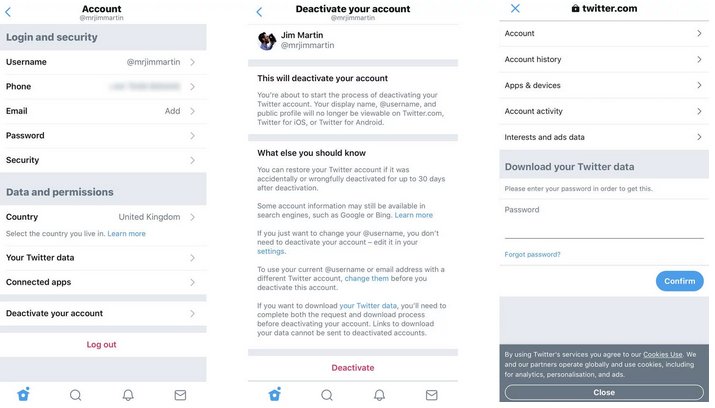
- Click on the menu and then choose “Deactivate your account”, then click on “Your Twitter data”
- You will be asked to enter your password. Enter it and then proceed as in the image below.
- The link will then be sent to you via email.