Run Android applications on Windows 10
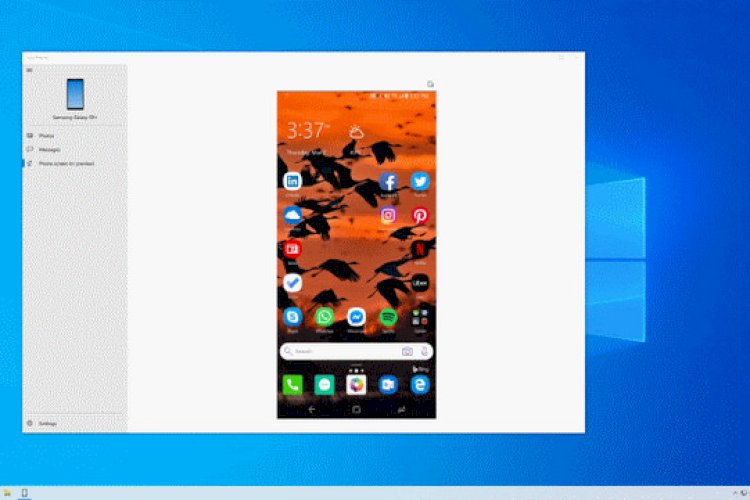
You can access some Android apps on your Windows 10 device, thanks to a Your Phone app update available for Samsung Galaxy phones.
This update was first announced during the Samsung Unpacked event on August 5. Pin your favorite Android apps to the taskbar or Start menu on your Windows 10 PC for quick and easy access. The apps will open in separate windows from the Your Phone app, allowing you to use them essentially the same way you use them on your phone.
What is required to run Android apps on Windows 10 PC?
- Samsung Galaxy phone (at least for now)
- You’ll need a PC running Windows 10 October 2019 Update or later. Check which version you’re running on your PC by going to Settings > Updates & Security > Check update. (If you need to upgrade, you still can Download Windows 10 for free.)
- You will also need the latest version of the app Your Phone .
- Your Android phone must be running Android 9.0 or later.
- Download an application Link to Windows On your phone
- Finally, your phone and computer must be on the same Wi-Fi network for the feature to work.
How to run Android apps on a Windows 10 computer
Once you have everything you need and connected your phone and computer, the Your Phone app window should appear on your desktop. To open Android applications on your desktop:
- Click on the Applications shortcut from the menu on the left. You will see a list of all the applications on your phone.
- Click on the application you want from the list, and it will open in a separate window on your computer.
- Note that not every application will work with a mouse or keyboard, but many will.
Here are some additional tips for interacting with mobile apps on desktop using a mouse and keyboard, according to Microsoft:
- A single click will behave the same as any single touch/click interaction.
- Right-click anywhere on your phone screen to go to the previous page.
- Tapping and holding will behave the same as the tap/hold interaction.
- Click, hold, and drag to select content.
- Scroll with your mouse to move between pages vertically or horizontally.
Watch the video if you need more information