
Reset lost admin password on Mac
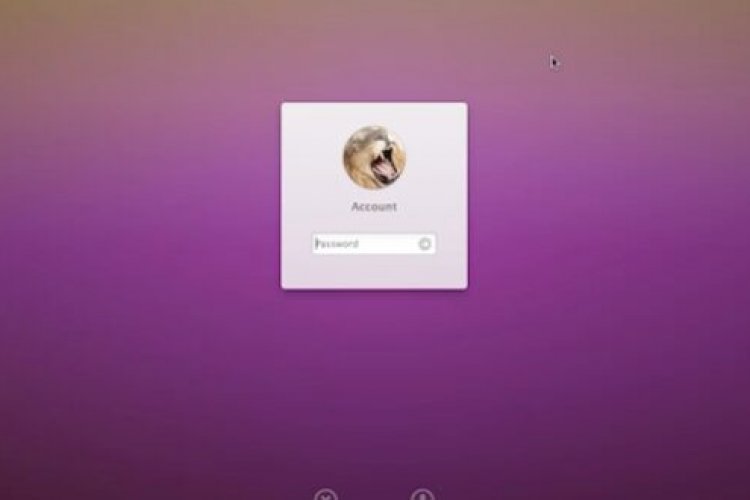
Have you tried to log in to your old iMac and were unable to log in due to a wrong password? After several trials, I decided to perform a password reset.
Apple includes a tool with Mac OS
Reset password for Mac
Follow these steps:
1- Turn off your Mac (choose Apple > Shutdown).
2- Press the Power button and hold down Command and R. Your Mac will then boot into recovery mode.
3- When you see the download bar appear, you can release the keys. The download may take a few minutes. Select the language and continue.
4- Select Disk Utility and press Continue.
5- Choose Utilities > Terminal.
6- Enter reset password (all one word, lowercase letters) and press Return
7- Select the folder containing the account (usually this is your main hard drive).
8- Choose the account you want to change using Select User Account.
9- Enter a new password and re-enter it in the password fields.
10- Enter a new password hint related to the password.
11- Click Save.
12- A warning will appear that the password has changed, but not the Keychain password. Click OK.
13- Click Apple > Shutdown.
Now start your Mac, and you can log in with the new password, when you receive a prompt if you want to use or update your old keychain, click Update.
If you liked this article, please share it and get technical news, reviews and video tutorials. You can also find us on Twitter, Instagram and Facebook.