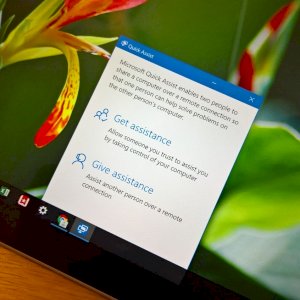
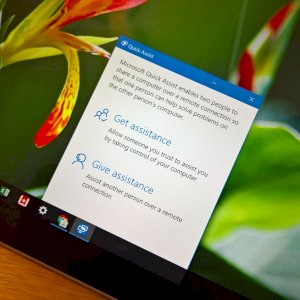
If you encounter a problem with your Windows 10 computer – during the home isolation situation that we are currently experiencing – and you cannot solve it, you can use the Quick Assist feature built into the system, which allows you to request or provide assistance remotely and take full control of the computer to make the necessary repairs.
Here’s how to repair Windows 10 remotely:
What you should remember before using the tool: Since this tool gives a person complete control over the other person’s computer, you should only use it with someone you trust, and if you are the one providing help, you need to use a Microsoft account. If you are receiving assistance, you do not have to sign in to your Microsoft account as long as you are happy to allow that person to access your computer.
How to set up Quick Assist in Windows 10:
If you are the one offering help, follow these steps:
- In the search box next to the Start button, type Quick Assist.
- Click on the Assist Another Person option.
- Type your Microsoft account username, and click Next.
- Type your password.
- Click on the “Sign in” option.
- You will then be shown a six-digit code that must be shared with the person receiving assistance, and you can email it directly from this window, or in any way you see fit.
If you are the one who will get help, follow these steps:
- Once you get the code from the person who will be helping you, take the following steps to give him access to your Windows 10 computer: In the search box next to the Start button, type Quick Assist.
- Type the six-digit code you received from the person providing assistance.
- Click on the Share Screen option.
- Click Allow to approve the access of the person providing assistance.
The person helping will now have a window open showing the other person’s computer desktop. How to use Quick Assist: Once connected to the other device, the person providing assistance will have a number of tools at his disposal, namely: The Annotate tool: which allows the person providing assistance to draw directly on both screens using the mouse cursor.
Restart button: To restart the other computer, in this case the Quick Assist connection will stop temporarily, but it will work automatically when the computer is restarted.
(Task Manager) Task Manager: To open the Task Manager on the other computer. To pause or stop the connection, you can click on the Pause or Stop button, and the connection can be resumed by pressing the Play button in the same place.
If the person receiving assistance wants to turn off Quick Assist, they can click the X button in the top right corner of the window on their screen.