How to see recent changes in a Google Docs, Sheets, or Slides file
Google Suite gives you an easy way to view all the changes that occurred in a file on Google Docs, Sheets, or Slides. This is very useful when you have made a lot of changes to a file or when you are working as part of a team and need to keep track of changes made to a shared file.
Here’s how to view recent changes to a Google Docs file.
How to see recent changes to your Google Docs file Note: If you don’t have edit permissions to a file, you won’t be able to view the History section in Versions for the file.
First, open a file you’ve stored on Google Docs, Sheets, or Slides. We’ll use Google Docs to illustrate the idea, but the process is the same in the other two services as well.
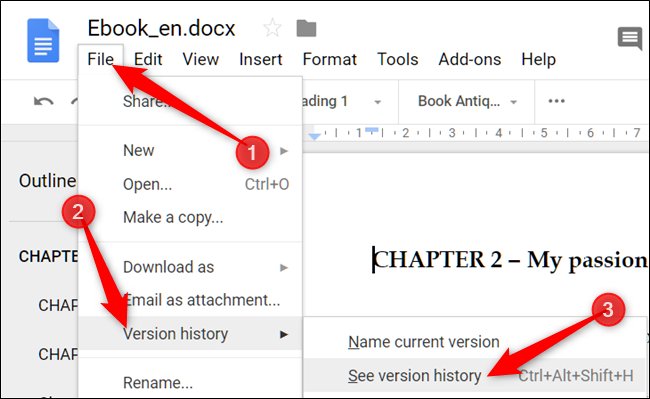
Once you have a document open, head to File > Version History > View Version History. Alternatively, you can press Ctrl + Alt + Shift + H.
Changes are grouped into time periods to make it easier to choose between different versions that have been saved. When you open the version history, click to expand all the recent changes made to the current version in the intended file.
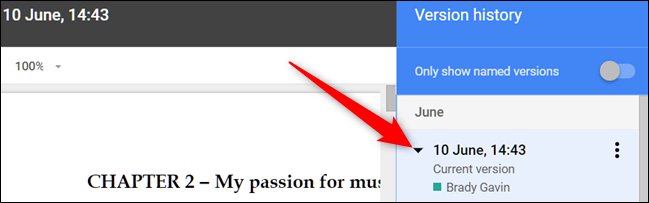
From here you will be able to see every change that has occurred to the file. This includes everything, such as adding or deleting letters and punctuation marks, adding links, images, etc.
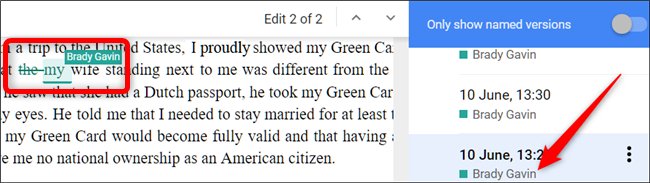
Clicking on a specific change will highlight it in the document and show the user who made that change, as in the image above.
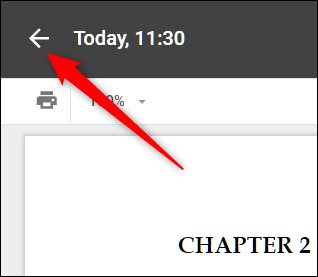
You can return to your current copy of the file by clicking on the arrow at the top of the window, as in the picture.