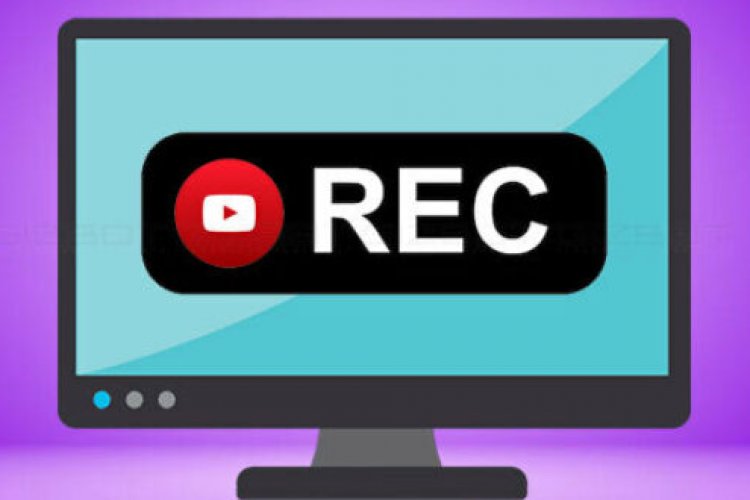
You may come across many third-party screen recording software that can help you record your desktop screen and later you can play it as a video. You can record your computer screen with them as well. But when you have a Windows 10 screen, you don’t need third-party screen recording software.
How to record desktop screen with YouTube
To record a desktop video, you can easily use YouTube’s built-in feature. If you use the built-in recorder, you can easily upload the video to YouTube and that too directly.
Steps to record desktop screen using YouTube
The following steps can be followed so that you can record your desktop screen using YouTube in a straightforward and simple way and the following steps are also easy.
Step 1: You will have to make sure that you have a Google account, with the help of your Google account, you will have to log in to YouTube. If you don’t have a Google account, make sure you create one.
Step 2:

You are on the page “Create Event Create Eventgive the video a title, set the video privacy to “Unlisted” or “Private” and click the “Go Live Now” button.
Step 3: This will open the Hangouts on Air page. You can click the camera icon to stop webcam recording. Likewise, you can toggle the microphone icon if you don’t want to record audio.
Step 4: Now click the Screenshare button in the left toolbox and select the desktop window you wish to record for screencast. Remember that if you use multiple virtual desktops, only active program windows will appear on the current desktop.

Step 5: Click the Start Screen Sharing button to share your screen, and then click Start Broadcast to start screen recording.
Note: This is a private session so no one can watch your broadcast while you are recording. When you’re done recording, click the Stop Streaming button and go to the YouTube website.
Or go to the video dashboard (youtube.com/my_videos) and you’ll see the new video you just finished recording. You can download the video to Google Drive or share it with others.
Videos are recorded at 720p HD, and it would be a good idea to resize the desktop window to a 16:9 ratio before hitting the stream button.