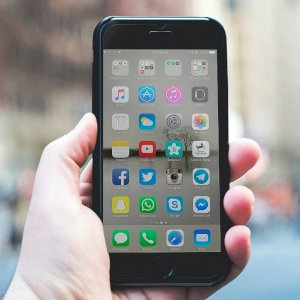
The seamless user experience is one of the main attractions of Apple’s iPhones, and they often outperform the competition, but unfortunately any device starts to slow down as it ages. iOS operating system updates can also have a negative impact on old iPhones. Although they offer new features and a higher level of security, they can sometimes cause slow performance.
7 tips and tricks to help you improve the performance of your iPhone:
1- Uninstall unused applications
Go through all the apps and games on your iPhone, and uninstall any that you don’t use regularly. Although you do not use these applications constantly, they take up space on your phone and consume phone resources by working in the background, and it would be more difficult if they were updated automatically. You can delete applications on your iPhone by pressing and holding the application you wish to delete, then clicking on the (Delete Application) option.
Delete App. 2- Update the operating system
Apple introduces newer versions of iOS not only to bring new features, but also to improve the overall performance of your iPhone. Therefore, check the settings every now and then to see if there is an update available for your phone, and update accordingly. But before you start installing the update, make sure that there is enough space on your phone, as the internal storage capacity of iPhones cannot be increased, so you can save a backup copy of photos, videos, and music, and delete the old part of it to save space. It is also recommended not to install updates immediately after they are released. Rather, you can wait a while until the matter stabilizes and see if the new update causes some problems, especially if your phone is somewhat old.
3- Turn off Siri features
Siri can be very useful in many cases, but there are some features that you might consider turning off to boost your phone’s performance. Siri can automatically suggest things when you search, starting with iOS 9 and later, but this feature can slow down your iPhone. To turn it off, you can follow these steps: Go to Settings. Click on the Siri & Search option. Scroll down until you reach the section called (Siri Suggestions). You will find three options, turn them off by pressing the toggle button next to each of them. If you have an iPhone 6S or later models; You can turn off the Listen for Hey Siri feature, because it puts your phone in a permanent listening mode, which affects performance.
4- Turn off the automatic downloads feature
Apple offers a feature on its devices called (Automatic Downloads), which allows you to automatically install applications on all devices. If your iPhone is the only device linked to your Apple ID, this feature may not cause you any problem, but if it is not, you will find new applications and content purchases that you downloaded in another device automatically present in your iPhone, and you do not want that. Go to (Settings). Click on your profile picture, then click on the (iTunes & App Store) option. Under the Automatic Downloads section, toggle the switches next to the (Music, Apps, Books, and Audiobooks) options to be greyed out.
5- Use default Apple applications
This may be an inconvenient option for some people, but there’s no doubt that Apple’s apps work best with iPhones, as they are set as default for most key functions, such as email, navigation, and web browsing. They may not always be the best in terms of functionality, but if you want the smoothest and fastest performance then you should stick with them.
6- Stop updating applications in the background
Some apps run in the background, sync data, and update content without you realizing it, but this affects performance, reduces battery life, and contrary to popular belief; Double-clicking the home button and then dragging everything to close is not the right solution. All you have to do is the following: Go to Settings. Click on the General section. Click on the Background App Refresh option and turn it off completely, or at least turn it off for specific applications from the list that appears below it. The only difference is that the app will sync when you launch it, instead of constantly syncing in the background.
7- Delete browsing history
Safari is one of the applications where it is relatively easy to get rid of unnecessary files, the presence of which affects your phone’s resources. Go to settings. Click on the Safari option. Click on the Clear History and Website Data option.