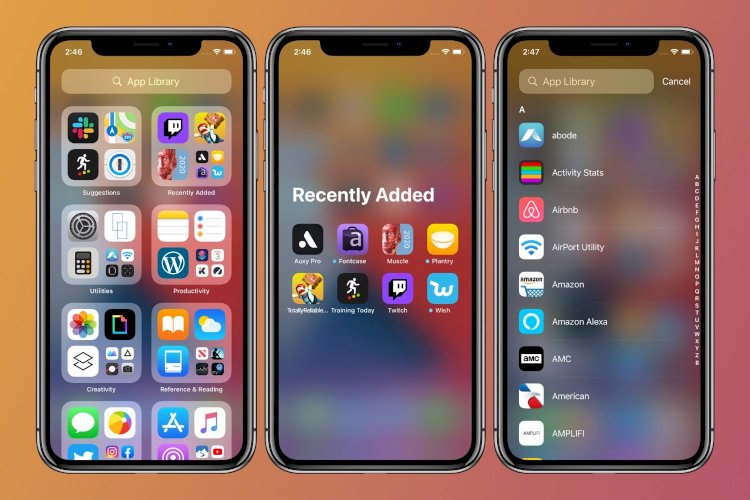
If you’re an iPhone addict and user, iOS 14 has provided you with a new tool: the App Library, which organizes your apps into categorized collections to make them easier to find. In fact, all your current apps can now be found there under the App Library, and any apps you download in the future will be placed there as well.
(You can decide whether you want apps to also be visible on your home screen, and we’ll tell you how later in this article.)
This new feature can be very useful, especially if you tend to download a lot of apps and don’t want to make your home screen pages too complicated.
Automated app groups in ios 14

The App Library appears as a separate page on your home screen. After updating to iOS 14, keep swiping left; The App Library will be the last page you click on.
iOS 14 automatically organizes your apps into folders labeled with a variety of categories. For example, right after updating to the new operating system, the group included folders such as Utilities, Productivity, Finance, Social, Creativity, Information, Readings, Games, Entertainment, Health and Fitness, and Travel.
Each volume is divided into four quarters; Each quadrant displays a logo representing the app. If the folder contains more than four apps, the remaining icons will be shrunk and grouped into one quadrant.
You can open the app directly from its icon in the App Library. If the app is part of a group of smaller icons (and therefore too small to tap), tap anywhere in that quadrant and the entire category will fill your screen so you can select the app you want.
Long press any app in the App Library, and a pop-up menu lets you delete it, use one of its features, or — if it’s not there already — copy the icon to your home screen. (This will not remove it from the App Library.)
If you can’t find a specific app, search for it in the search box at the top; You will get an alphabetical list of your applications, you can either type the name of the application you want or scroll down to find it as you see in the image below.
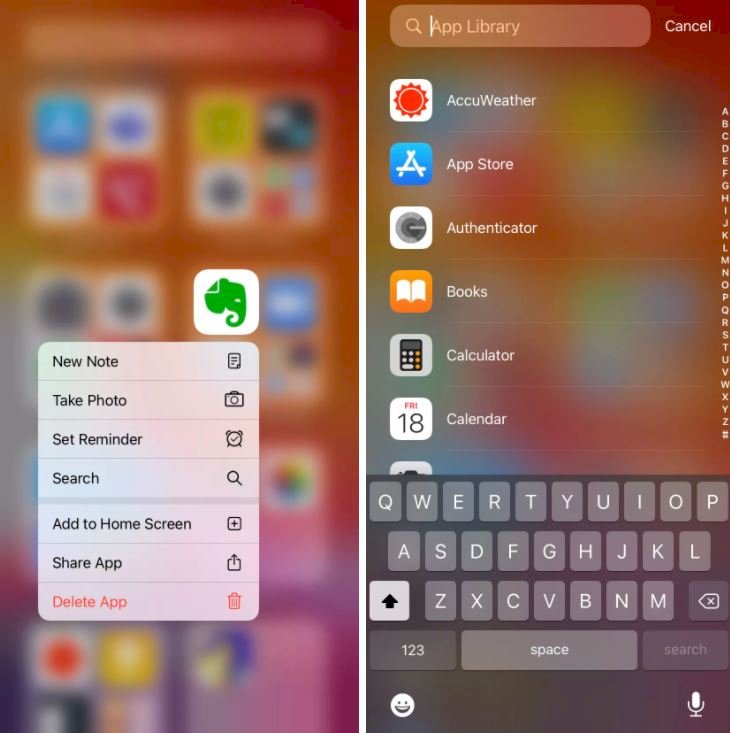
However, you cannot specify where the new app appears in a library or which group you want in the new app library. For example, I installed an app called NYC 311, which provides alerts and information about a particular city, and the system placed it under a “Recently Added” folder. I couldn’t move it to another folder. I couldn’t create my own folder or move the app to an existing, different folder.
Move apps to App Library in iOS14
If you want to clean up your home screen, you can “remove” apps so that they are only visible in the App Library. Follow these steps:
- On the home screen, long press on the app you want to add to the App Library.
- Click “Remove application”.
- Click Move to App Library. As in the picture below

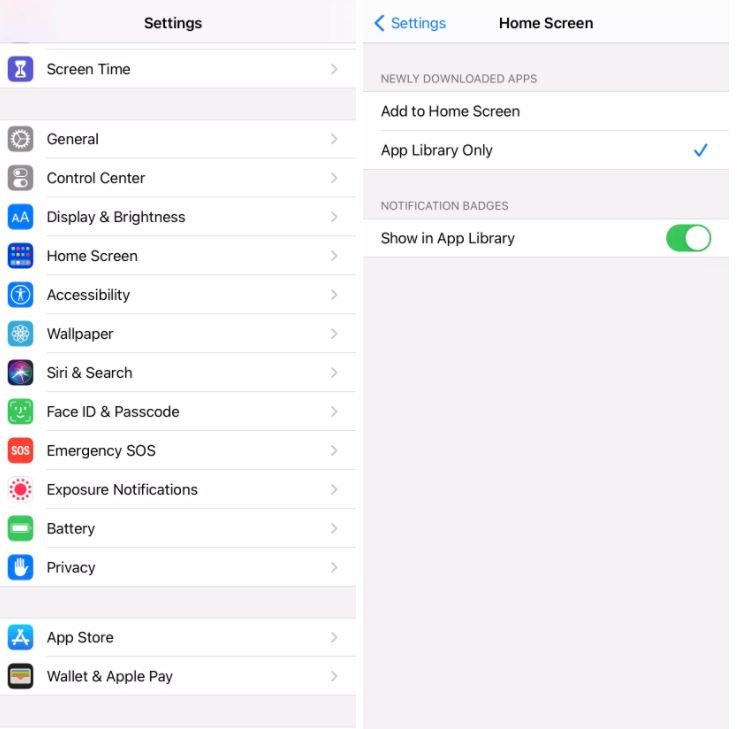
You can also get rid of a group of Home Screen apps at once by long-pressing on an empty area on your Home Screen. Tap the “minus” icon in the corner of each app you want to remove from the Home Screen and select “Move to App Library.” If you want to keep your Home Screen clean, you can show only recently installed apps in the App Library and not just on the Home Screen by following the steps below.
Go to Home screen > Settings > Home screen
Choose either “Add to Home Screen” or “App Library Only.” You can also choose to display notifications in the App Library.
As mentioned earlier, the App Library is an interesting addition to iOS, allowing for more organization of apps, less complexity of the home screen, and a cleaner, less cluttered layout.
However, its lack of customization, to me at least, is a major limitation — unlike its Android counterpart, it doesn’t allow you to create your own groups or decide which app should go into which group. We expect Apple to improve the feature over the coming months.