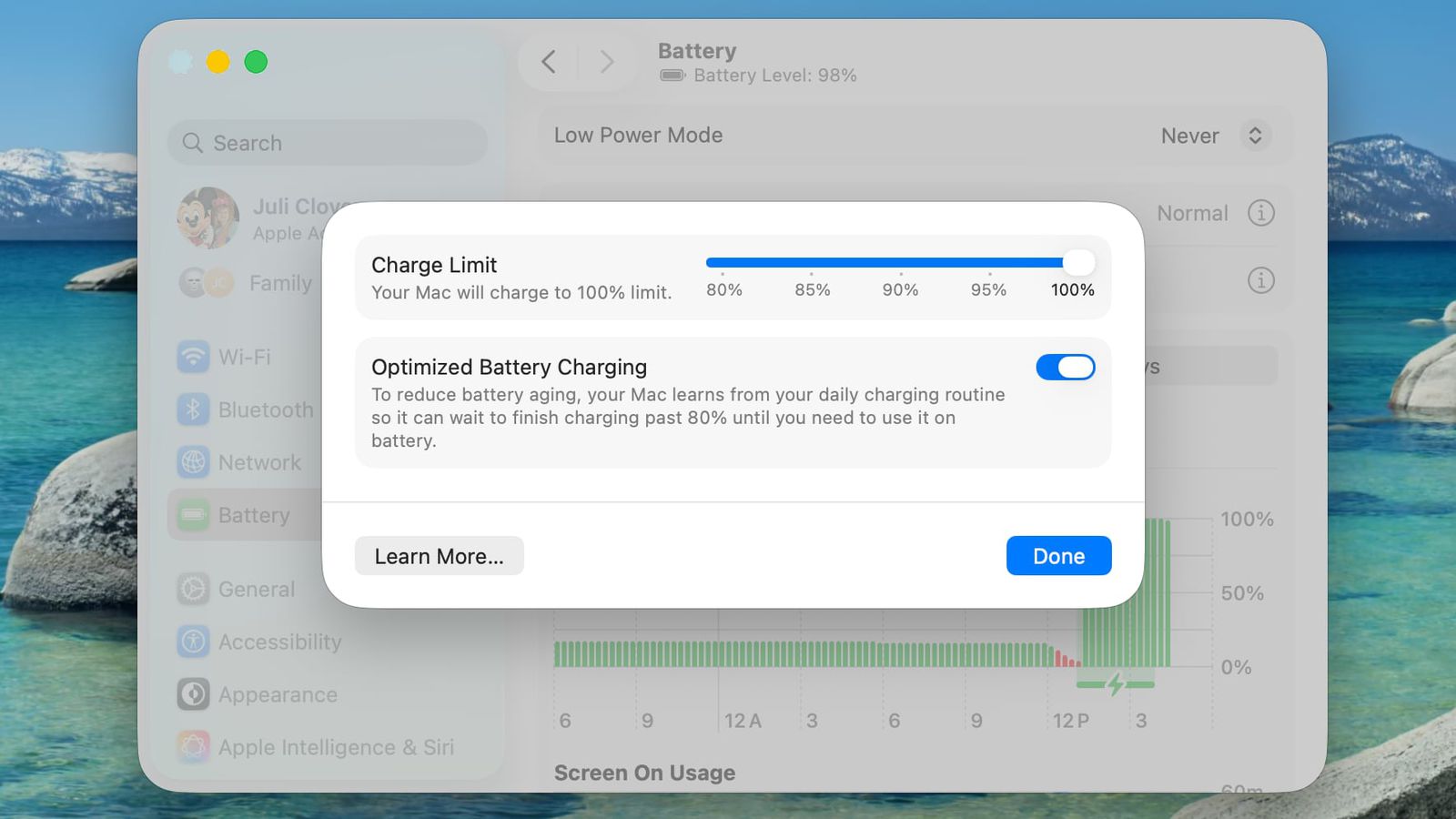
This new option differs from the Optimized Battery Charging feature, which studies your daily routine and delays charging past 80% until the time you are most likely to need a full battery. With this feature, your computer may reach 100% regularly based on your usage, while setting a fixed charging limit prevents this from happening altogether. Choosing a lower charging limit means reducing the time you can work away from the power source, but if you often sit at your desk with your device connected to the charger, this sacrifice is worth it to preserve the battery in the long term. However, if you rely on your computer a lot while on the go, you can choose a higher limit to reduce battery wear without suddenly running out of power.
To activate this feature easily, you can click on the Apple logo icon in the menu bar and open the system settings, then go to the battery section in the sidebar and click on the information button next to the charging option. Then you can drag the charging limit slider to your preferred level, whether it is 80, 85, 90, 95, or even 100%, and then click on the Done option. Your computer will now stop charging once it reaches the level you chose, with the enhanced charging feature continuing to work in the background unless you turn it off from the same panel, noting that even with the limit set below 100%, the system will fully charge the battery from time to time to maintain accurate power level estimates, but it will stick to the specified maximum most of the time.